Linux
A Flatpak bundle. Speaks with Piper, included.
clispeak-linux.flatpakSpeak text aloud on your own devices. Peer to peer, no server, no account.
Install it on your laptop and your phone, pair them once, and either can say something out loud on the other. Your devices talk to each other directly, encrypted end to end, and there is nothing to sign up for.
It is built so an agent can drive it — which is why it is a command-line tool with a window attached rather than an app with a terminal bolted on.
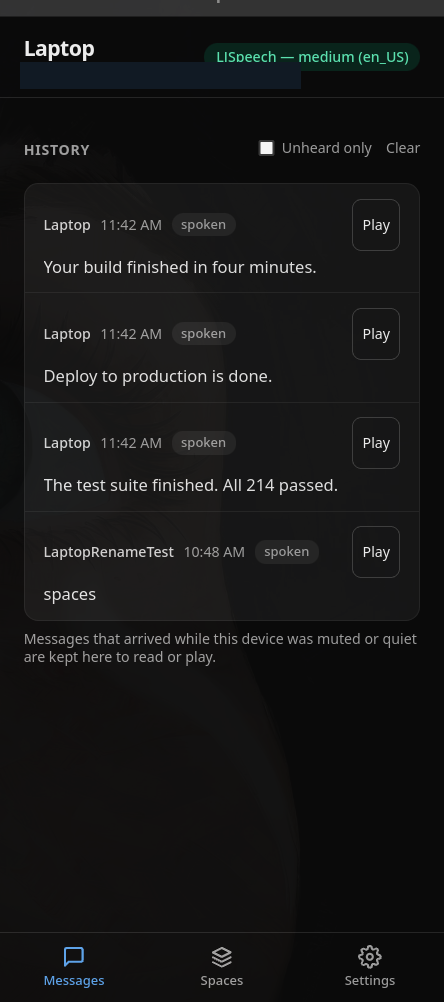
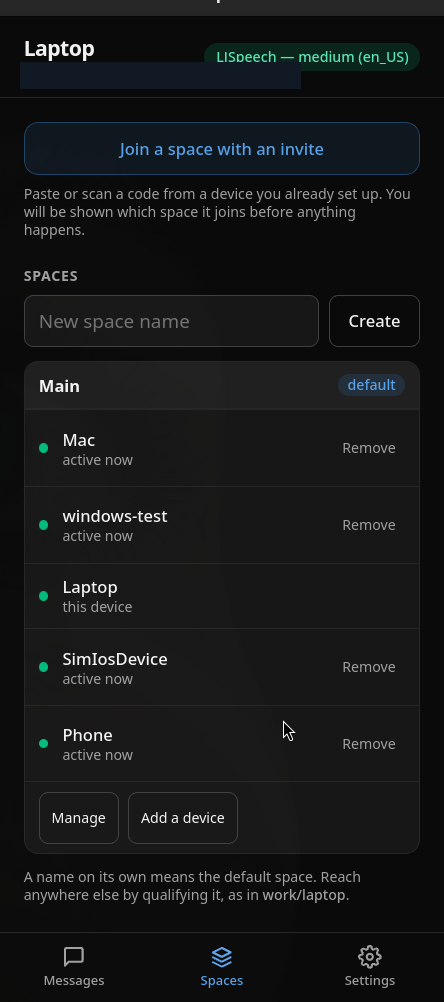
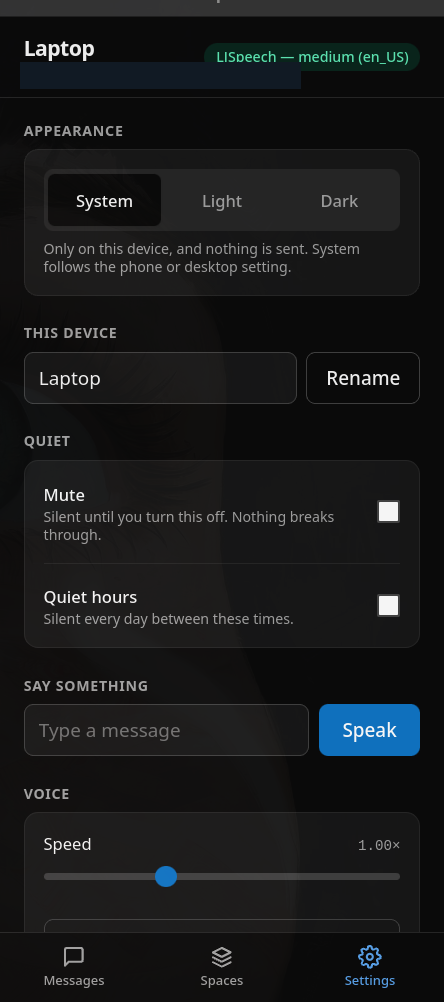
An agent working in your terminal can say “the build finished” or ask a question out loud, on your phone, while you are in another room. This is the reason clispeak exists.
A test suite, a deploy, a render. Append one command and the machine tells you it is done instead of you checking a terminal every ten minutes.
Send text from your laptop to a phone in the kitchen, or to a machine across the room. Text to speech, on hardware you already own, without an account.
A monitor, a cron job, a wake-up. Spoken aloud rather than added to a pile of notifications, with quiet hours so it respects the time.
Devices connect over iroh, which is QUIC — so every connection is TLS 1.3, and it is authenticated against the devices’ own keys rather than a name somebody claimed.
Two devices find a direct path most of the time. Where a network will not allow one, the traffic falls back to a public relay that passes the bytes along and cannot read them.
Finding each other uses ordinary DNS, so a network can tell that two devices are looking for one another — never what they say. The security notes say so plainly.
Free, and the same build on every platform.
A Flatpak bundle. Speaks with Piper, included.
clispeak-linux.flatpakA disk image, signed and notarised by Apple. One download for both Apple silicon and Intel.
clispeak-macos.dmgAn installer. No administrator password needed.
clispeak-windows-setup.exeAn APK. 64-bit ARM phones only — every phone made since about 2019, and no emulator.
clispeak-android.apkiOS: coming soon. There is no download yet. When there is, it will speak only while the app is on screen: waking a suspended iOS app needs a push server, and this project deliberately has none.
Every platform has a moment where it tells you this software is dangerous. None of them mean the download went wrong. Here is the one you will hit.
One install does nothing on its own. Pairing is what makes it useful, and it takes about a minute.
An invite carries the space it was made for, so scanning it joins the one you asked for rather than whichever happened to be selected. An invite lasts five minutes and works once — if you go and make a coffee, make a new one.
This is the reason the project exists. An agent working on your machine can tell you something out loud instead of writing to a terminal you have walked away from.
$ clispeak devices
Laptop           5dc736e3b1b945e3  (this device)
Phone            700945f4007d3db5

$ clispeak --to Phone "the build finished"
  Phone            spoken       2.3s
What makes it drivable rather than merely scriptable: distinct exit codes, so a caller can tell “muted” from “unreachable”; errors that carry a fix rather than a diagnosis; and a receiver that reports a reason instead of swallowing a failure. A device that will not speak says which setting stopped it.
clispeak ships a skill: a file that tells an agent when speaking is worth doing, how to name itself so you know who is talking, and what each exit code means. Two ways to install it, and neither needs you to copy anything by hand.
1. Install clispeak on the machine your agent runs on
The app installs the clispeak command onto your PATH the first time it opens. Open a new terminal afterwards — one that was already open keeps the environment it started with.
2. Install the skill
From the terminal:
clispeak skill --install
That writes it to ~/.claude/skills/clispeak/SKILL.md, where Claude Code looks. Or open the app, go to Settings, and press Install — the same file, and it tells you if the copy on disk has fallen behind the app.
Keeps its skills somewhere else? clispeak skill with no flags prints it, so you can put it wherever your agent reads from.
3. Pair the device you want to be spoken to
Usually your phone — see pairing. Then tell your agent who to talk to, in whatever words you like: “speak to me on my phone when a long job finishes”. The skill covers the rest.
Read the skill before you install it — it is a text file, and it is short.
An assistant that reads every thought aloud gets muted within a day, and then it cannot reach you at all. So the useful thing is not teaching it to talk — it is telling it when to. You do that once, by saying it, and clispeak remembers.
Just talk to it. “Use my phone.” “Only tell me if something breaks.” “Stop telling me about builds.” Ask it to set clispeak up and it will ask you a few short questions instead. Nothing to configure and no file to edit.
Call me: Patrick
Speak on: my Phone
How much: keep it short out loud, put the detail on screen

Say something when
  1. a long job finishes and I have walked away
2. you are stuck and need an answer from meNew conversation, one nudge: tell your assistant you want to use clispeak, or just ask it to say something out loud. That is what makes it pick your settings up. From then on it has them for the rest of the chat — you only do this once per conversation, not once per message.
Left alone in a chat where clispeak never comes up, it does nothing at all. That is on purpose. It should not be reaching into conversations that have nothing to do with it.
Tomorrow’s chat knows it. So does a different assistant, if you switch or use more than one. You should not have to say it twice. What you told it is kept on your computer, not in one assistant’s head.
Tell it to stay quiet and it stays quiet — it cannot talk itself into an exception. And every message says who it came from, so a voice out of your pocket never leaves you wondering which assistant that was.
The rest is up to it. Say “never mention client names” and it will try. But that one is a promise, not a lock — and we would rather say so than let you assume otherwise.
This site counts visits and download clicks with Google Analytics, which uses cookies. Allow it?